Getting Started
Getting Started Checklist
A Guide to Creating Your First Order
shopVOX Overview
Icons and Interface Tour
How Do I Cancel My shopVOX Account?
How do I Update Our Billing Info?
Color Picker - Saving Colors
Enhancing Security with Multi-Factor Authentication in shopVOX
Webinars in shopVOX Express: Learn and Grow with Us
Syncing Job Line item names, on the Jobs Board
Setting Up Your Account
Accounting
Connecting to your Accounting Software
Connecting Your QuickBooks Online account to shopVOX
Connecting your XERO account to shopVOX
XERO accounting FAQs
Connecting Your Sage One Account to shopVOX
In application credits and refunds - shopVOX Pay - Express
shopVOX Pay - Program Fees for shopVOX Express
Quickbooks Online: Common Sync Errors
Importing Your Customers and Contacts
Add your Payment Gateway
Inviting Users to Your Team
Add Your Logo and Company Info
Group and Describe Jobs with Tags
Setting Roles for your Team
SMTP Settings
Configuring Your Notifications
Created Canned Message Templates for Your Team to Use
Adding Vendors
How to Activate Your PAX A920 Pro Terminal
shopVOX Pay
Connecting External Gateways
Add your Payment Gateway (duplicate)
Quoting and Order Management
Adding/Updating Customers and Contacts
How to Issue Refunds and Credit Memos (non shopVOX Pay Process) shopVOX Express
Stay Organized with Notes, Tasks, and Assets
Purchasing and Receiving Blank Garments
Creating Your Own Custom Views
Roll Up Line Items to Combine Pricing
Invoice statements: creating and sending to a customer
Give customer options using No total Pdf
Production Management
Track Progress with Job Statuses
Managing Job Statuses and Deadlines
Creating Jobs for Tracking Production
Using a TV for your Job Board
Creating Your Own Custom Job Views
Uploading and Sending Proofs for Approval
Products and Pricing
Golden Products - Express
Golden Product List Overview & Resource Guide
Print Cut Digital Vehicle Graphics - Golden Product
Door Hanger Product Setup & Pricing
Greeting Cards with BOM (Bill of Materials) Golden Product
Screen Printing Apparel - Golden Product
Printed Vehicle Wrap - Golden Product
Flatbed Digital Print - Golden Product
Rigid Sign with Cut Vinyl Graphics - Golden Product
Business Cards - Standard - 3.5 x 2 Golden Product
Heat Transfer Apparel - Golden Product
Brochures with BOM (Bill of Materials) Product Setup and Pricing Review
Rigid Sign with Digitally Printed Graphics - Golden Product
Golden Products - Business Cards - with BOM
Wide Format Digitally Printed - Golden Product
Banner - Golden Product
Envelope Golden Product
Postcards with Bill of Materials (BOM) Pricing
Posters Digital Gloss Golden Product
NCR Forms Digital Golden Product
Printed Cut Decals - Golden Product
Notepad Digital Golden Product
Print Services - Golden Product
Print Cut Digital Vinyl Graphics - Golden Product
Brochures - Digital (Gloss) Golden Product
Mixed decoration Apparel Golden Product
Print & Copy with Bill of Materials (BOM) Golden product
Color Change Vehicle Wrap Golden Product
Embroidery Apparel - Golden Product
Canvas Print Gallery Wrapped Product
Ready to Apply (RTA) Vinyl - Golden Product
Letterhead Digital Golden Product
Flyer with Bill of Materials (BOM) Product
Various Business Card Products - Digital, Linen, Matte,Silk, UV Coated
Apparel Simple Charge Products (Color Change, Color Match, Digitizing, and Design Hourly)
Promotional Product - Golden Product
Golden Products - Booklet - with BOM
Shipping - Golden Product
Yard Sign - Golden Product
Design Package - Golden Product
Print Area Per SqFt - Golden Product
Greeting Cards Digital Golden Product
Field Installation - Golden Product
Magnetic Sign - Golden Product
Postcard Digital Golden Product
Printing - Custom Golden Product
Calendar Wall with BOM Golden Product
Raffle Tickets (Numbered) - Golden Product
Flyers Digital Golden Product
DTG (Direct-to-Garment) Apparel - Golden Product
Appointment Cards Digital Golden Product Setup and Pricing
Retractable Banner Stand - Golden Product
Apparel Decoration
How to Price Graphic Design (for apparel decorators)
How to price Embroidery
How to Price Screen Printing
How to Price Promotional Products
How to Price Color Matches
Integrated SAGE promotional catalog
How to price apparel with Mixed Decoration
How to price Direct To Garment printing
How to Price Color Changes
How to Price Digitizing
How to price Heat Transfers
Guide to apparel decoration pricing
What are Products?
Setting Your Shop Hourly Rate
Adding Your Own Products
Customizing the Base Products
Golden Products List by Global Region
Whats New
2025 Whats New
2024 Whats New
Wed, 06/05/2024 Tasks, notes, and assets associated with a quote to sales order to invoice will now be displayed in the Related Assets section. Pro & Express
Fri, 05/31/2024 Quick Tip: What does the yellow color indicate on a job board? Pro & Express
Thu, 05/30/2024 “Mastering Customer Proof Reviews: Unveiling the Dollar Value Flag” Feel free to use or modify it as needed! 😊📝 Pro & Express
Thu, 08/08/2024 Microsoft Outlook - Two Factor Authentication Pro & Express
Wed, 05/15/2024 Enhanced Notification System: In-app Alert for Proof Uploaded Pro & Express
Fri, 09/06/2024 Allow Line Item Taxable Override Pro & Express
Fri, 10/04/2024 New Apparel catalog available for US/CAN accounts! Pro & Express
Tue, 05/21/2024 Added New Email Template Tag: {{txn_downpayment}} Pro & Express
Wed, 06/05/2024 Added a new addition to the Products called 'Published'. Pro & Express
Mon, 09/16/2024 Express & Pro webinar articles Pro & Express
Tue, 10/08/2024 New feature added: Task templates to prefill repeated Tasks Pro & Express
Tue, 11/05/2024 2FA - Two Factor Authentication is now active (Optional) Pro & Express
Wed, 05/01/2024 Daily Tip - Add shopVOX email id's as contacts!
Tue, 10/29/2024 Enhancement to the online proofing feature. Pro & Express
Thu, 05/02/2024 Quick Tip: Within each user profile, there's a setting to toggle between Full Screen Mode and Fixed Layout.
Mon, 10/07/2024 Enhancement in Task Pro & Express
Sat, 08/10/2024 Australia/New Zealand regional Golden Products have been updated! Pro & Express
Wed, 08/28/2024 Update: The Purchase Order State will automatically change from Draft to Ordered once the Vendor Order ID is eneterd on the PO. Pro & Express
Fri, 05/31/2024 Added another PDF for Invoice Statements: Aging Summary PDF. Pro & Express
Wed, 08/28/2024 Enhancement in New Customer page Pro & Express
Fri, 05/17/2024 Job Board Overview and Best Practices Pro & Express
Wed, 11/06/2024 Colors: there is a new way to save colors! Pro & Express
Tue, 10/08/2024 New feature added: Task templates to prefill repeated Tasks Pro & Express
Wed, 10/16/2024 Announcement: Another new US Apparel catalog available! Pro & Express
- All Categories
- Setting Up Your Account
- Accounting
- In application credits and refunds - shopVOX Pay - Express
In application credits and refunds - shopVOX Pay - Express

Accounts with shopVOX Pay enabled now have the ability to credit or refund payments directly on the site.
Crediting a payment:
1. Navigate to the payment you wish to refund or credit.
2. Click the pencil icon in the top right hand corner.
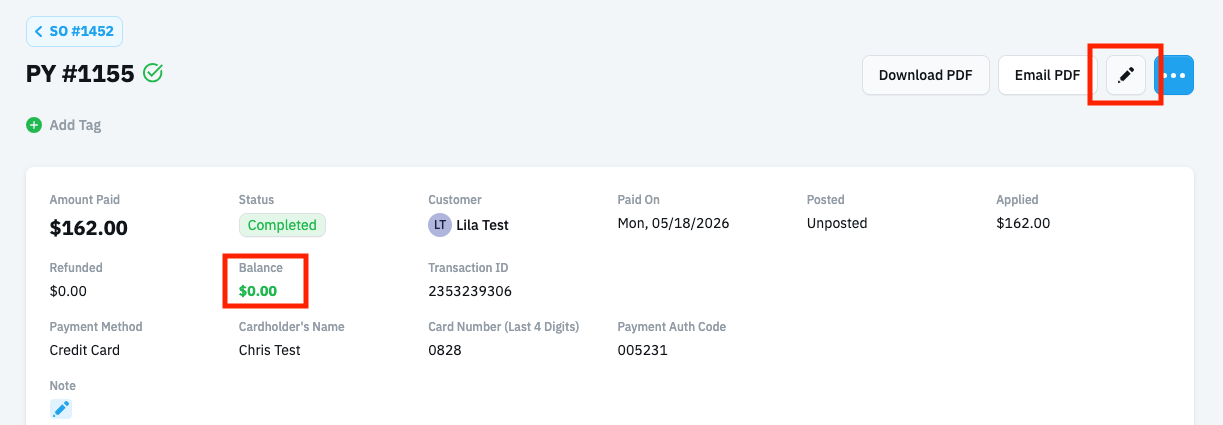
3. Select the amount you want to unapply and then "Update Payment."
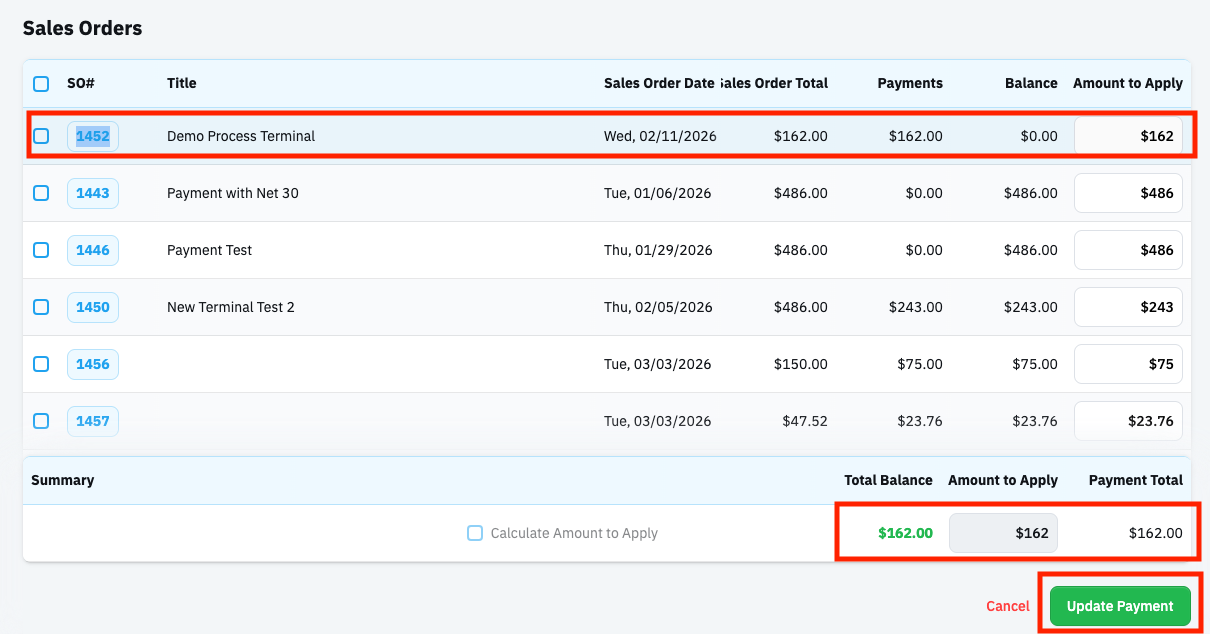
4. The balance will update to the amount entered.
5. To refund the credit back to the customer click on the "action button" menu and select Cancel/Credit refund.
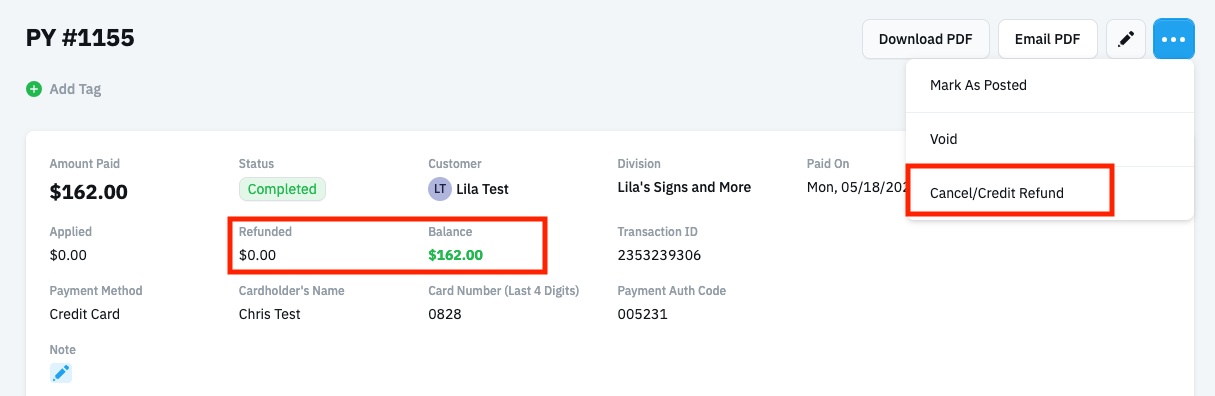
6. Enter the amount you wish to refund and then "Add New Refund."
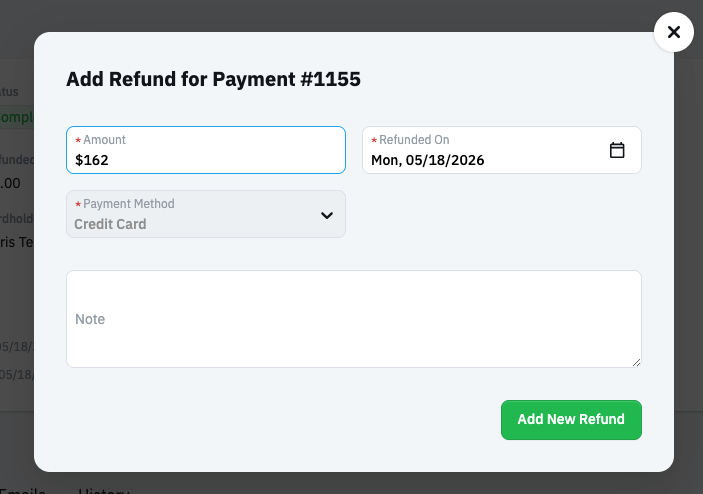
7. The refunded amount will now show under refunded section and balance will show the remaining amount if any.
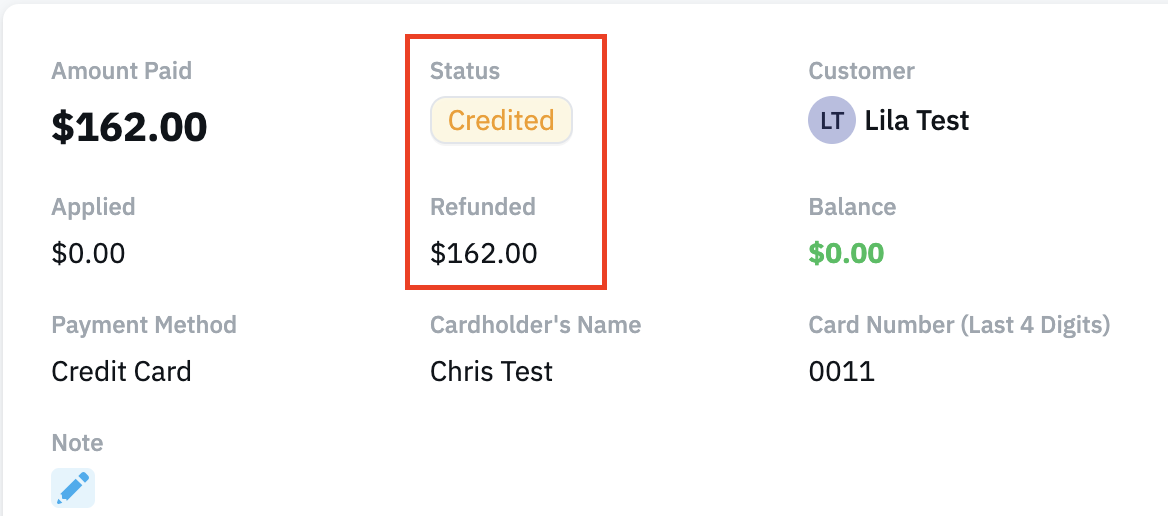
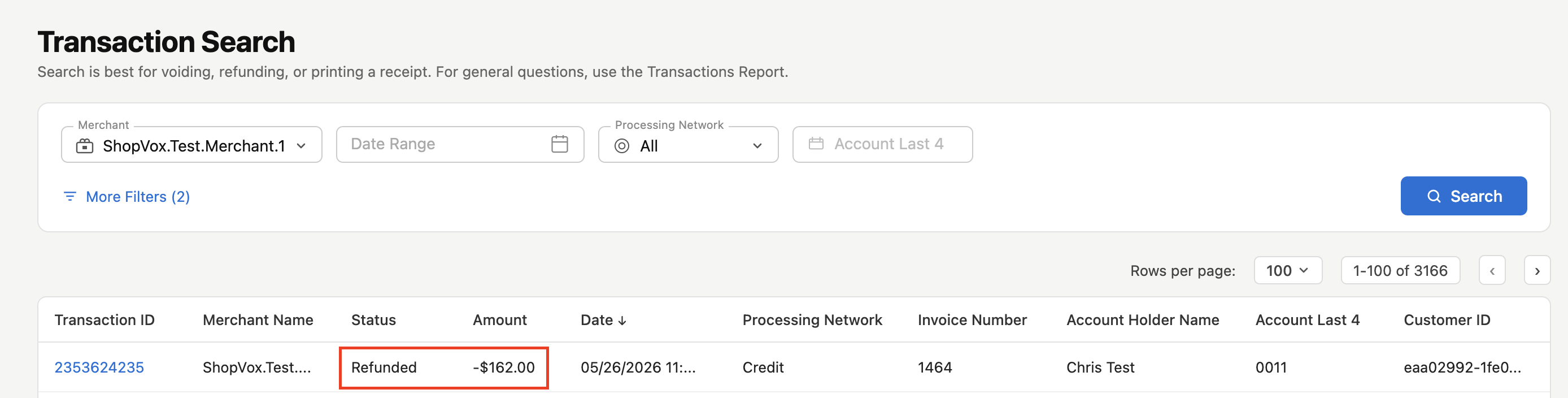
8. You can confirm the refund was successfully by looking up the transactions in Pulse / Merchant Track.
Program Fee Charges
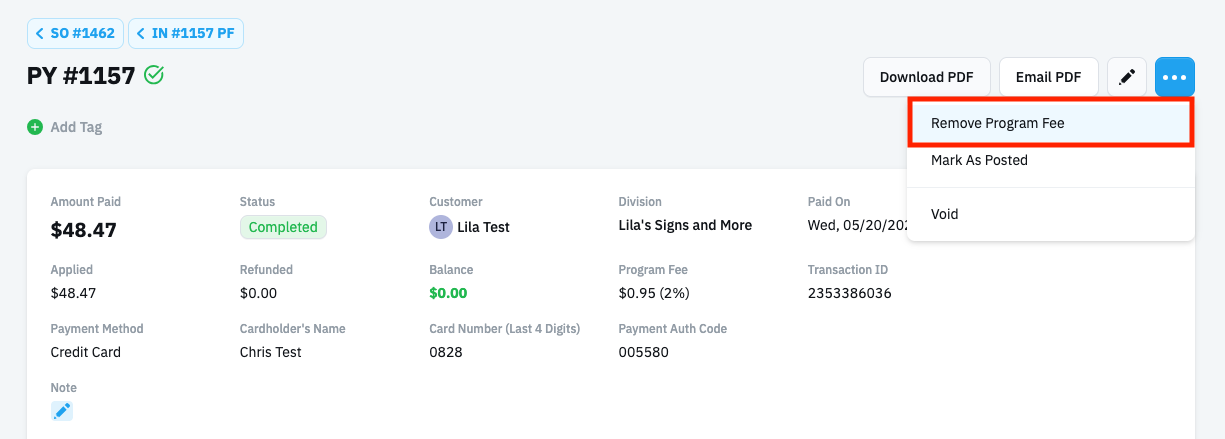
If you charge a Program Fee you will see an option to "remove program fee". This will allow you to refund or credit the PF only.
1. Navigate to the payment you wish to refund or credit.
2. Click the blue "Actions" icon in the top right hand corner.
3. Click "Remove Program Fee"
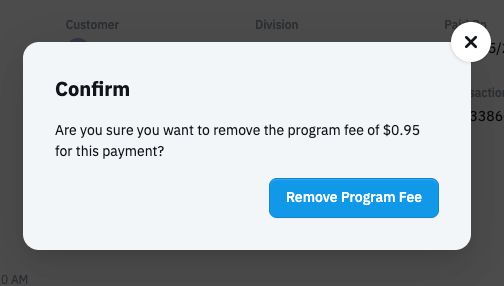
4. Click "Remove Program Fee" to confirm this action.
5. Scroll up and follow the above steps to refund the program fee.
