shopVOX Pay - Program Fees for shopVOX Express
 Updated
by Crystal Richard
Updated
by Crystal Richard
To help businesses offset the cost of processing fees, shopVOX offers the ability to automatically apply a surcharge when customers pay using a credit card, referred to as a Program Fee. This feature gives you the flexibility to specify a percentage or set transaction fee for each credit card type you accept, ensuring you can recover transaction costs directly at the time of payment.
Once set up, the fee is automatically added to the total amount when a credit card payment is processed through your connected payment gateway.
This guide walks you through the steps to define and customize Program Fees on your payment methods and to define and customize Program Fees for specific customers.
Step 1: Access Global Program Fees in Settings
- Navigate to Settings

- Navigate to Accounting
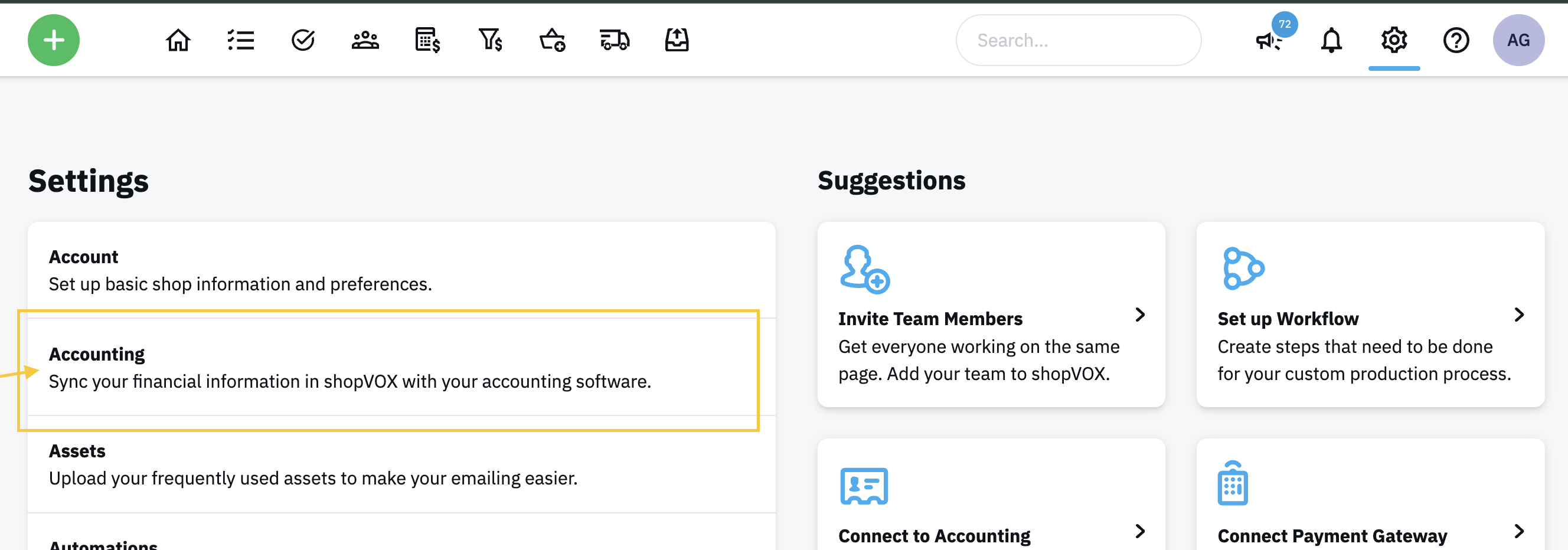
- Navigate to Program Fee
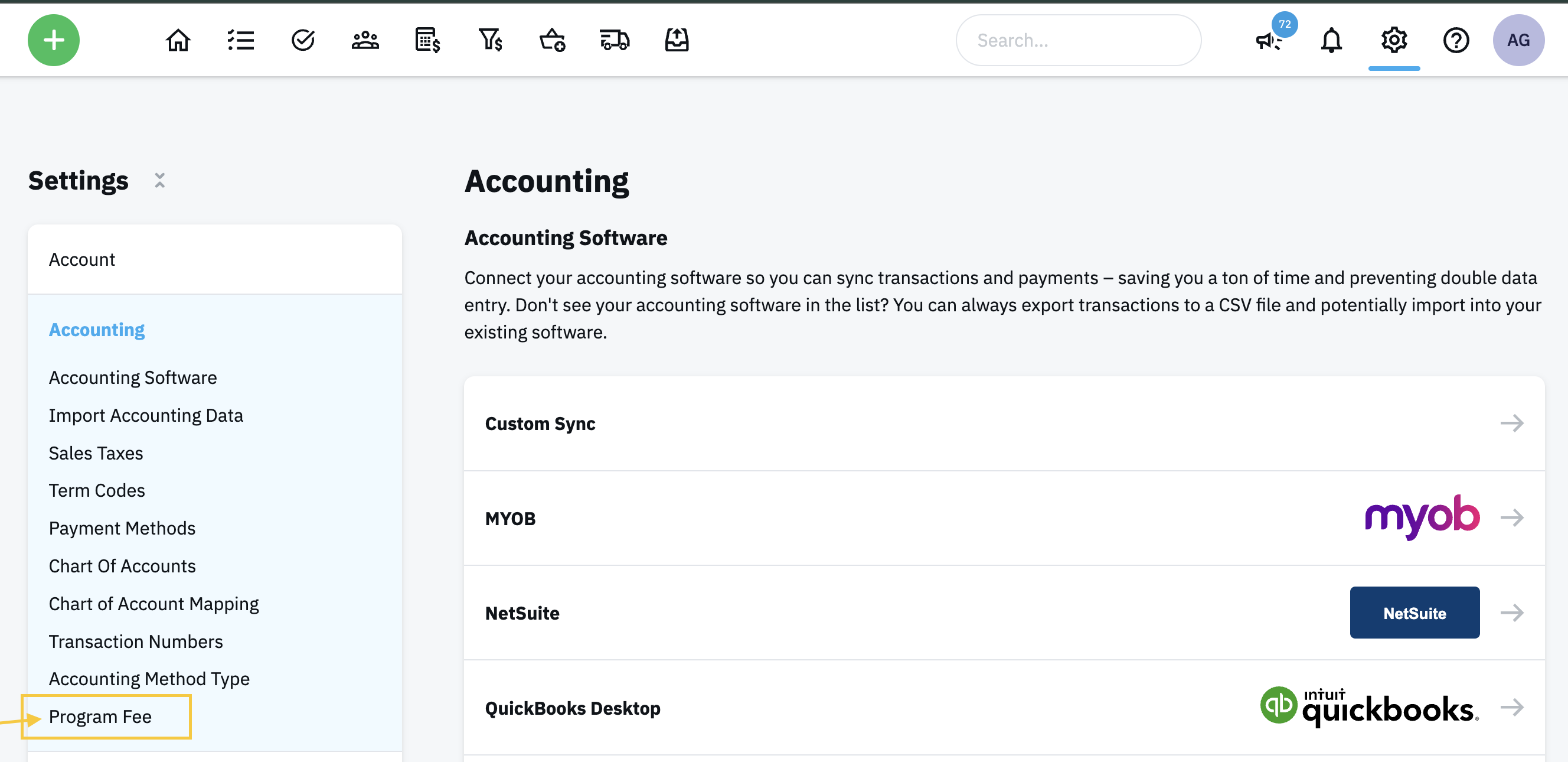
Step 2: Configure the Program Fee per Payment Type
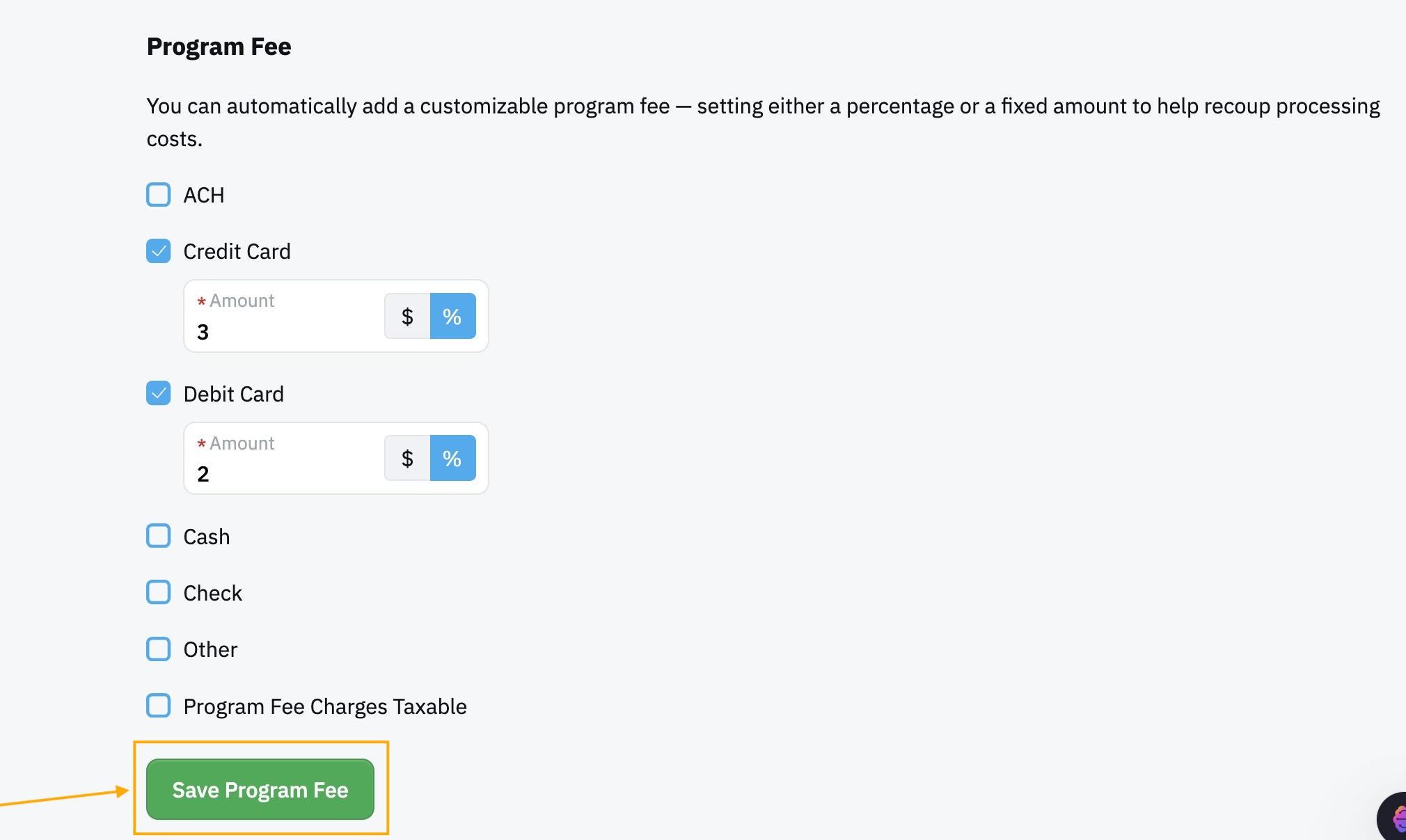
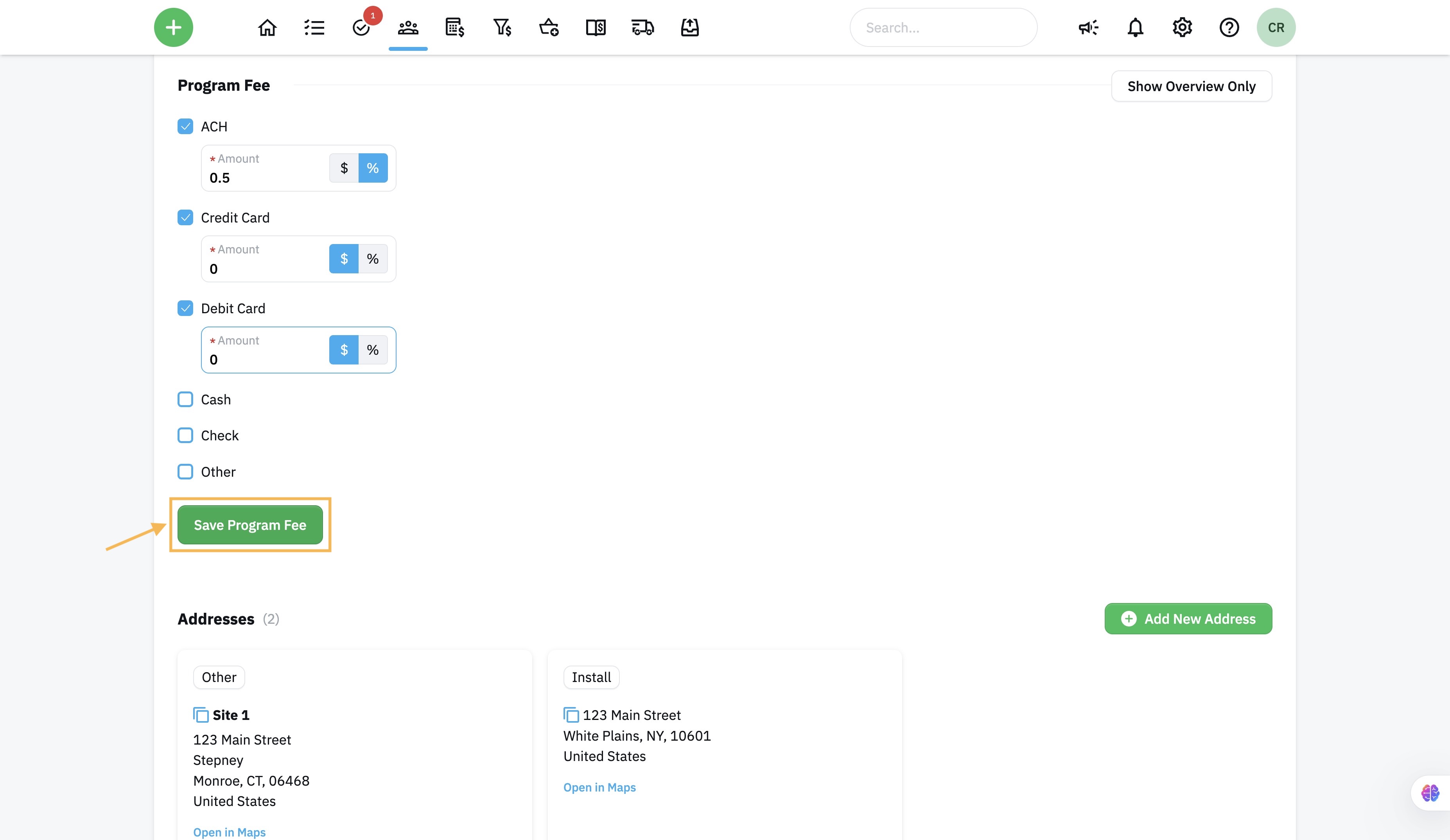
- From the "Program Fee" section, select or deselect the individual Program Fees you wish to charge.
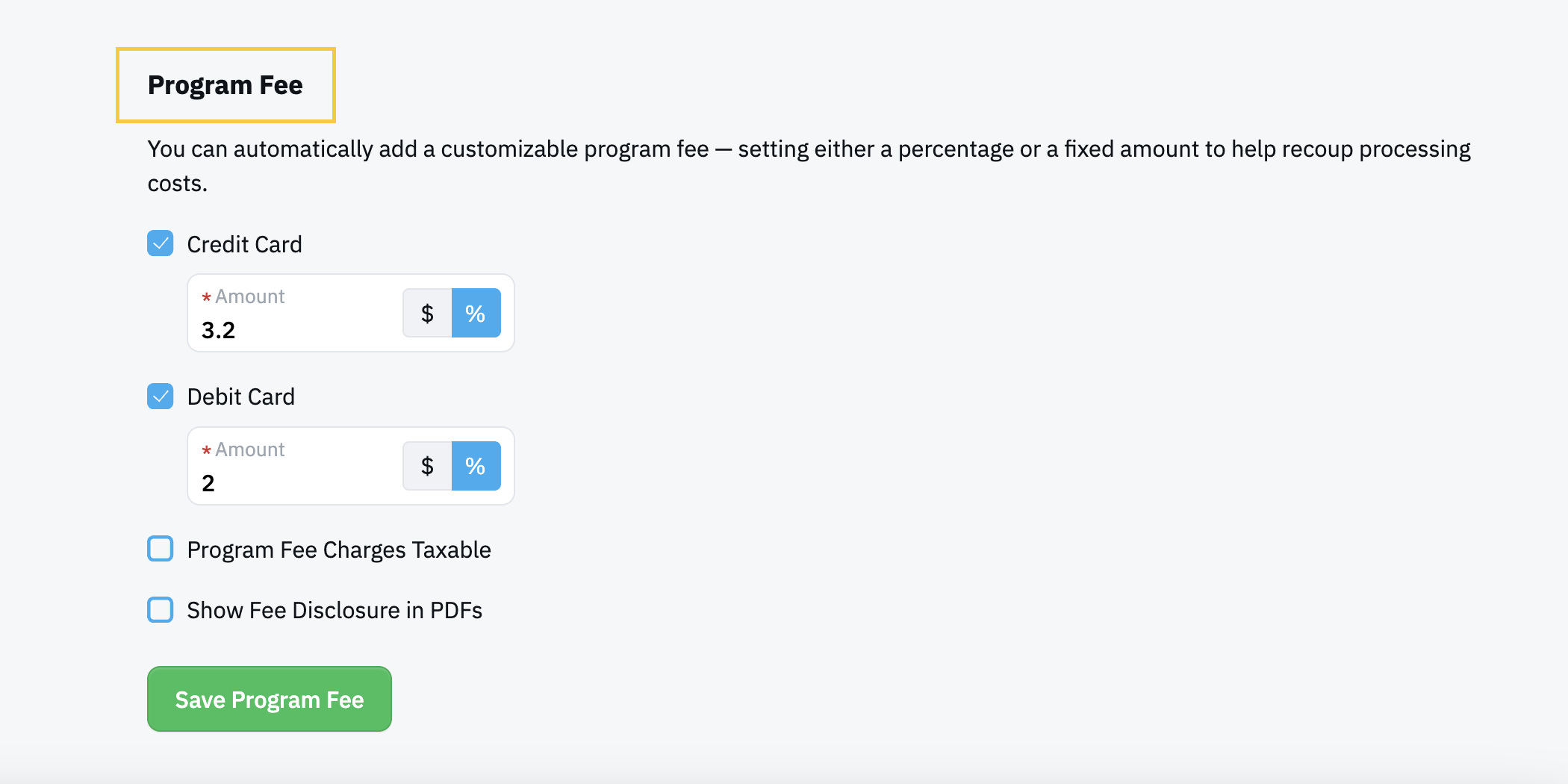
- Once the check box is selected, enter the desired Program Fee amount in dollars or a percentage.
Enter the percentage surcharge you want to apply for that payment type (e.g., 3.5 for a 3.5% fee) and select the proper icon for dollars vs percentage.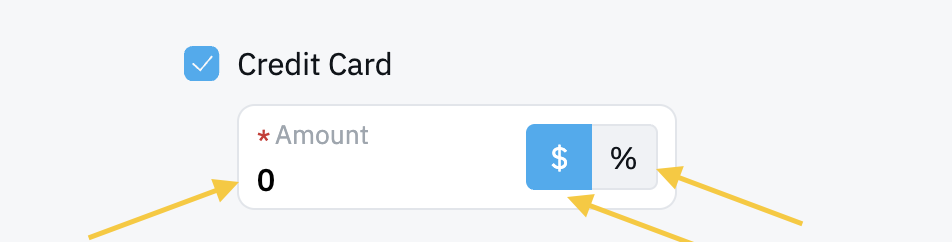
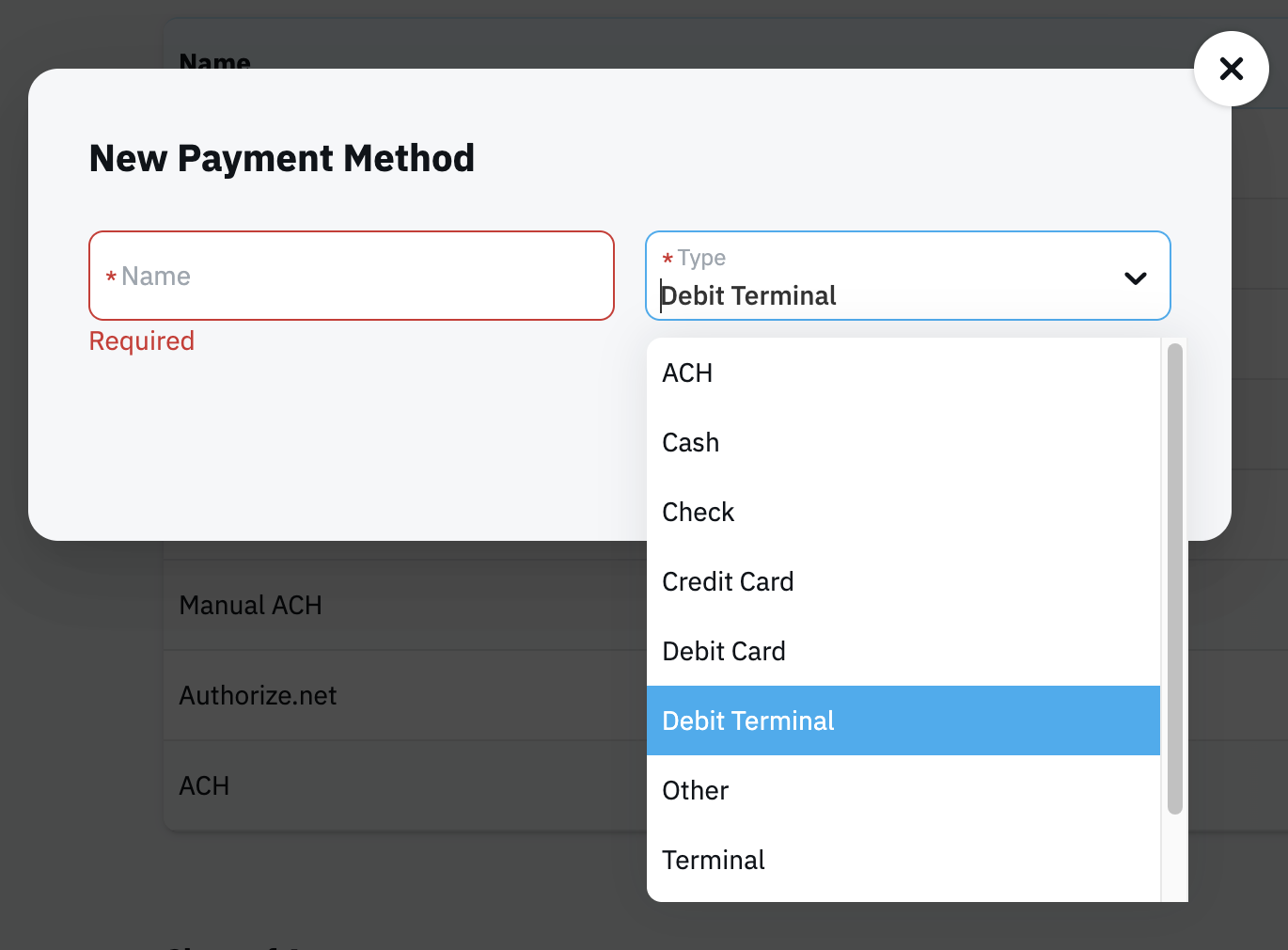
- If you would like to set a debit card terminal Program Fee that is different than the regular terminal fee, this requires a separate type of payment.
Inquire from the customer if they plan to use a debit card prior to selecting which terminal the payment is for so the desired Program Fee is charged.
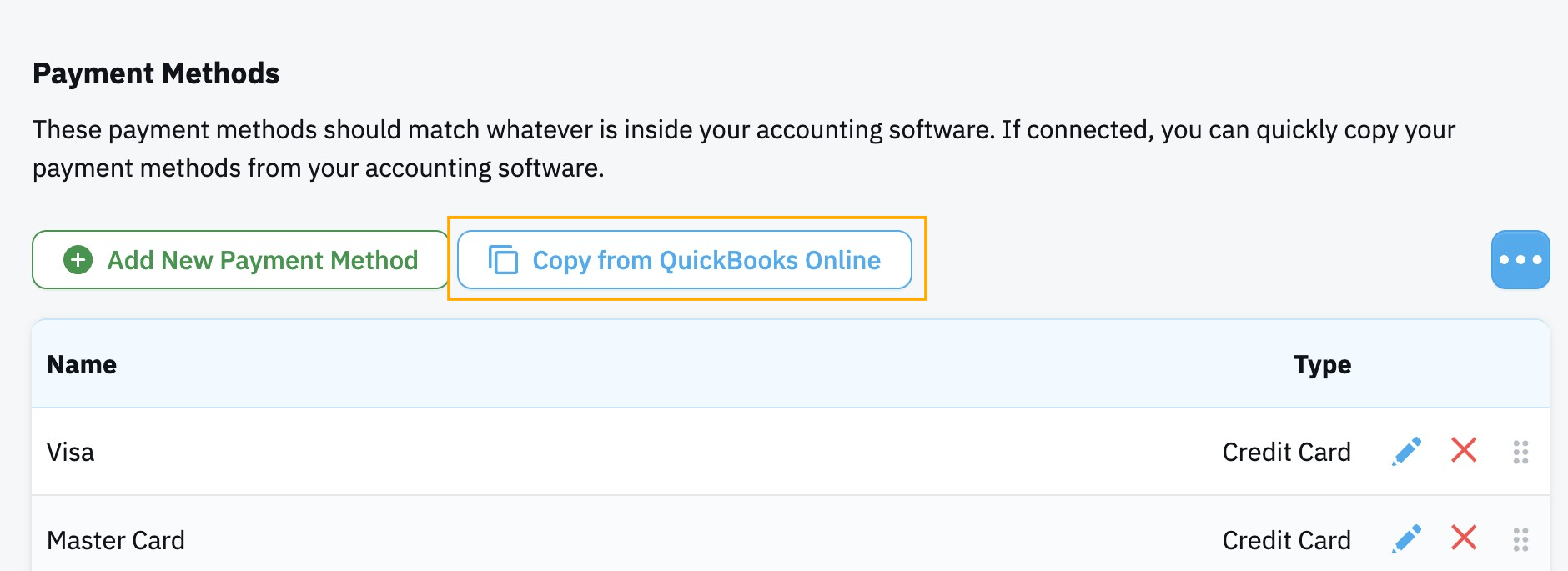
If you are not following this and instead using "Add New Payment Method" directly in shopVOX, you MUST create a matching payment type in your accounting platform or it will prevent payments from successfully syncing to the accounting platform.
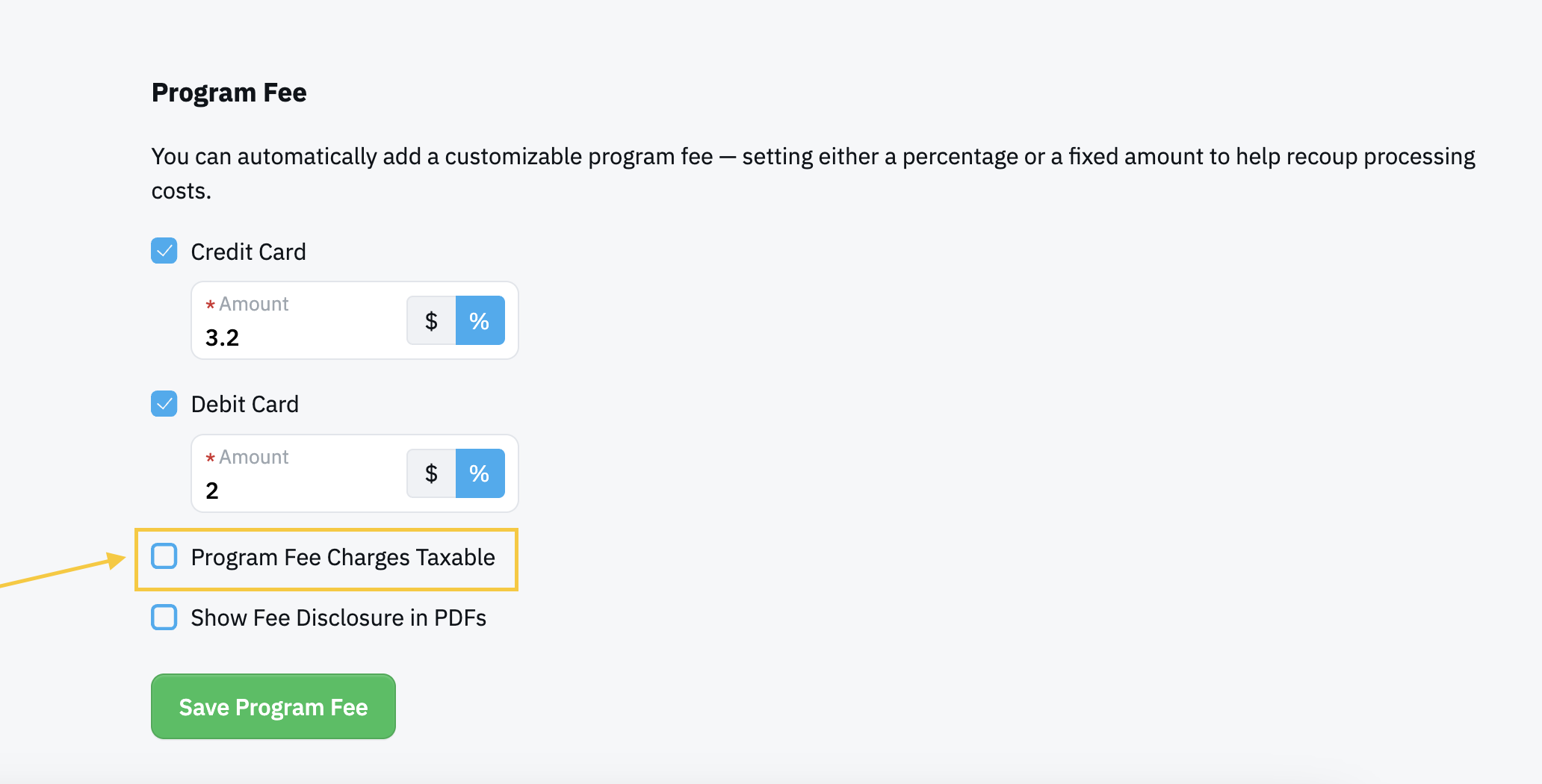
- Save Program Fee as Taxable or Non-Taxable.
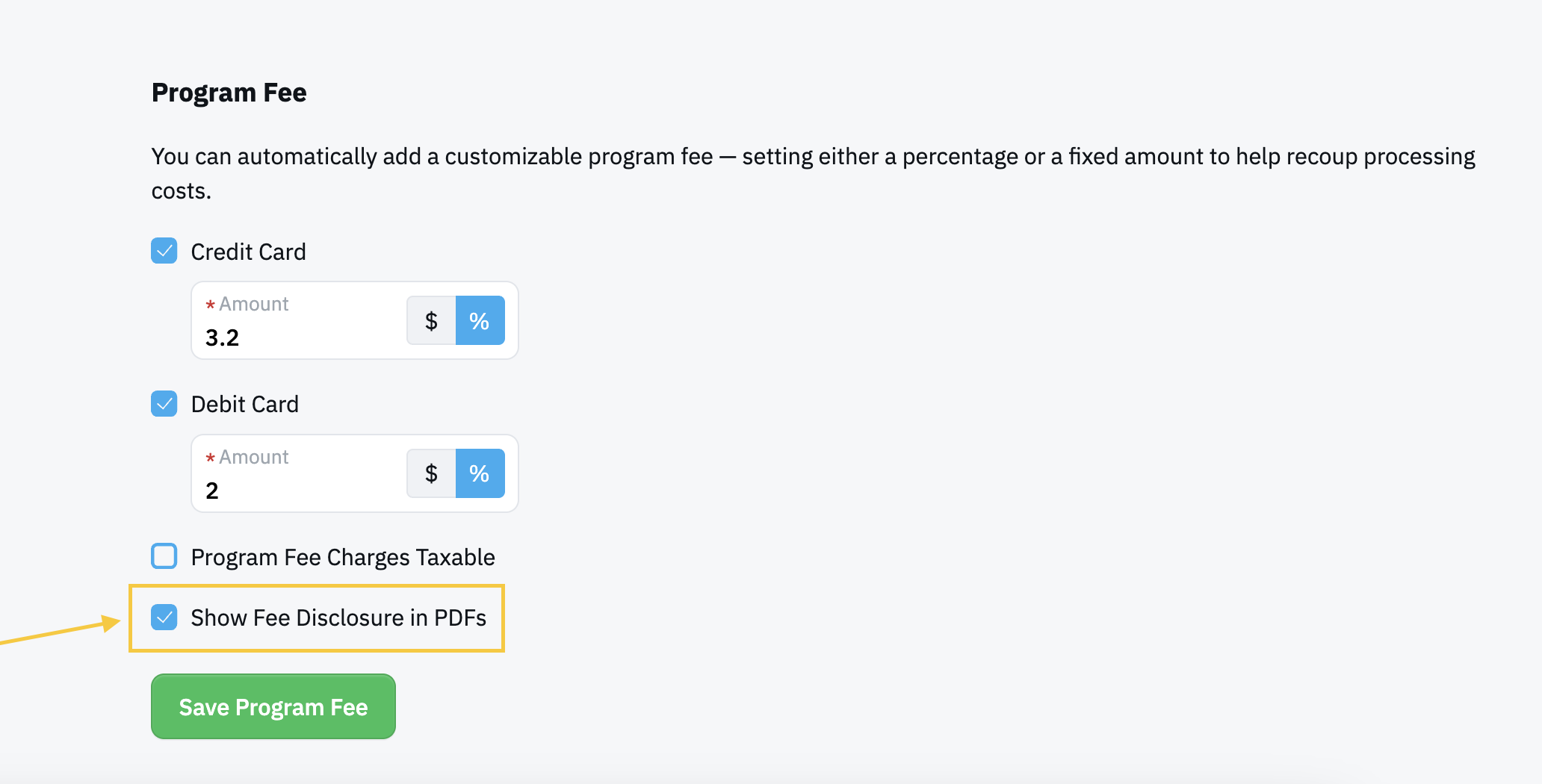
- Use "Show Fee Disclosure on PDFs" for a customer disclaimer if desired.
- Save all Program Fee changes.
- If this is your first time using Program Fees, scroll up to the section to the Chart of Account Mapping section. This is an income account type.
(Navigate to the Accounting settings, by visiting Settings -> Accounting -> Chart of Account Mapping. Be sure to map the correct Chart of Account to the new field titled "Program Fee Charges")
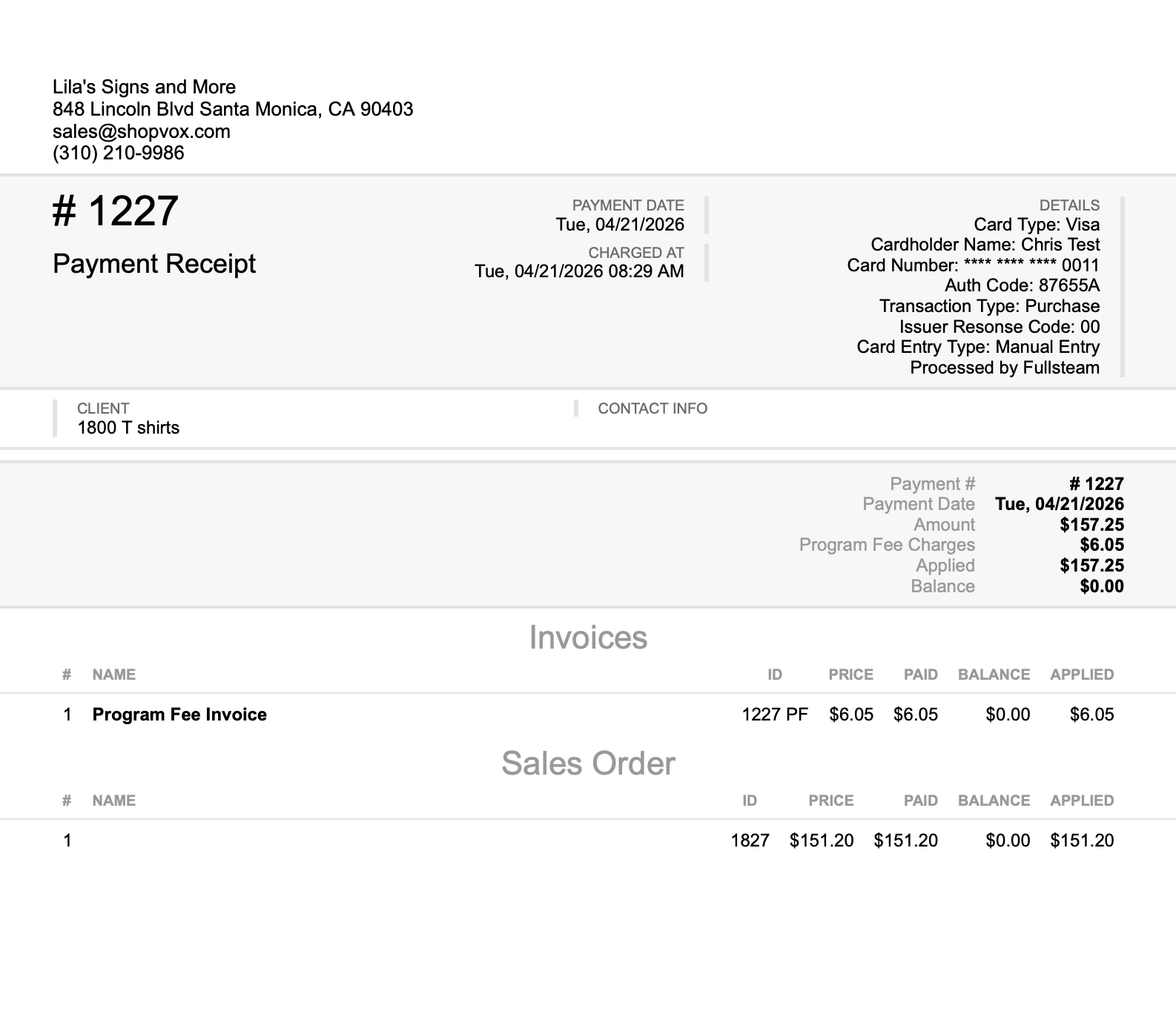
- Use the Payment Receipt for a clear indication of total sales, program fees and total amount paid.
Customer Specific Program Fees
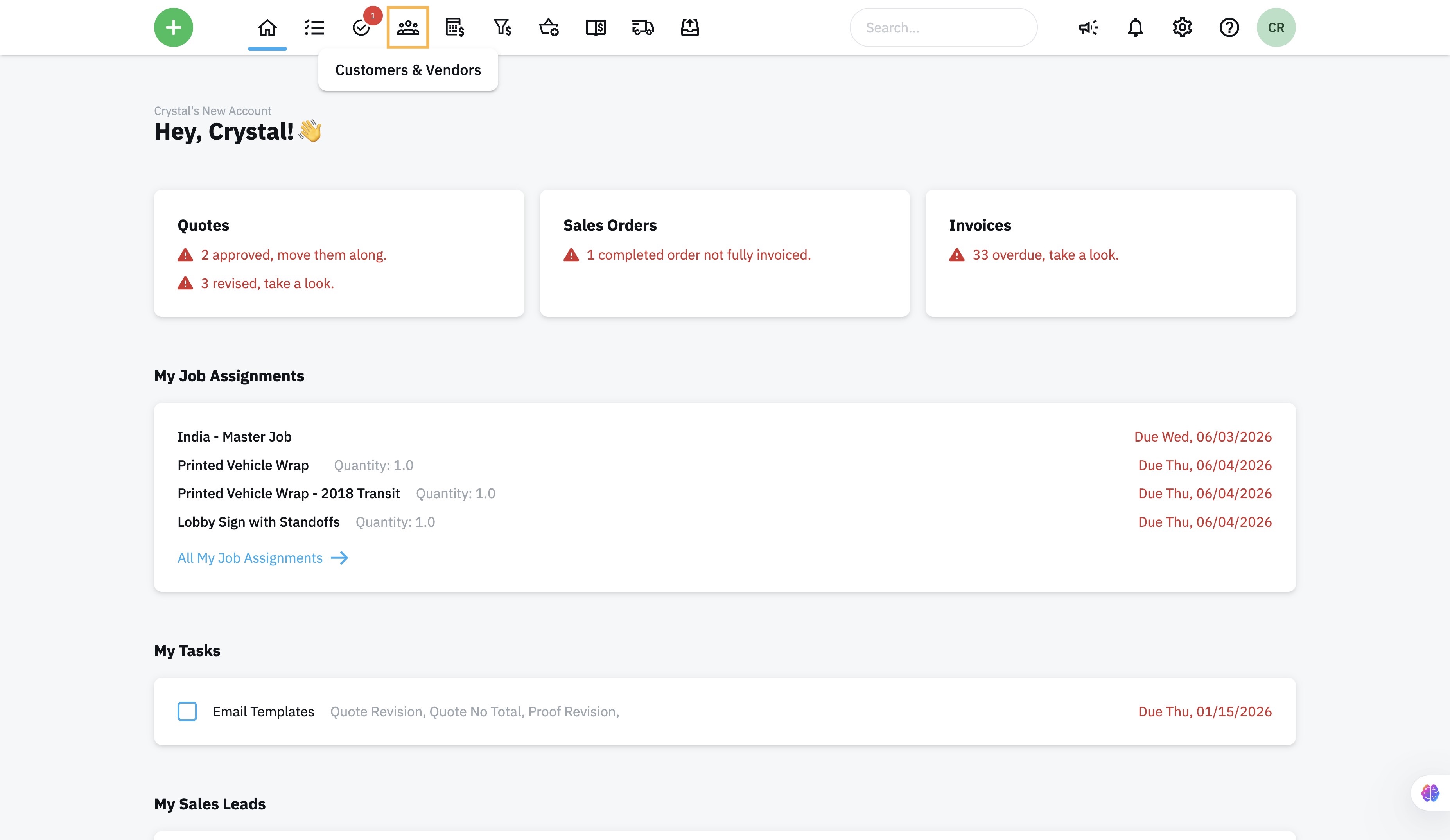
- Click the Customer/Vendor icon.
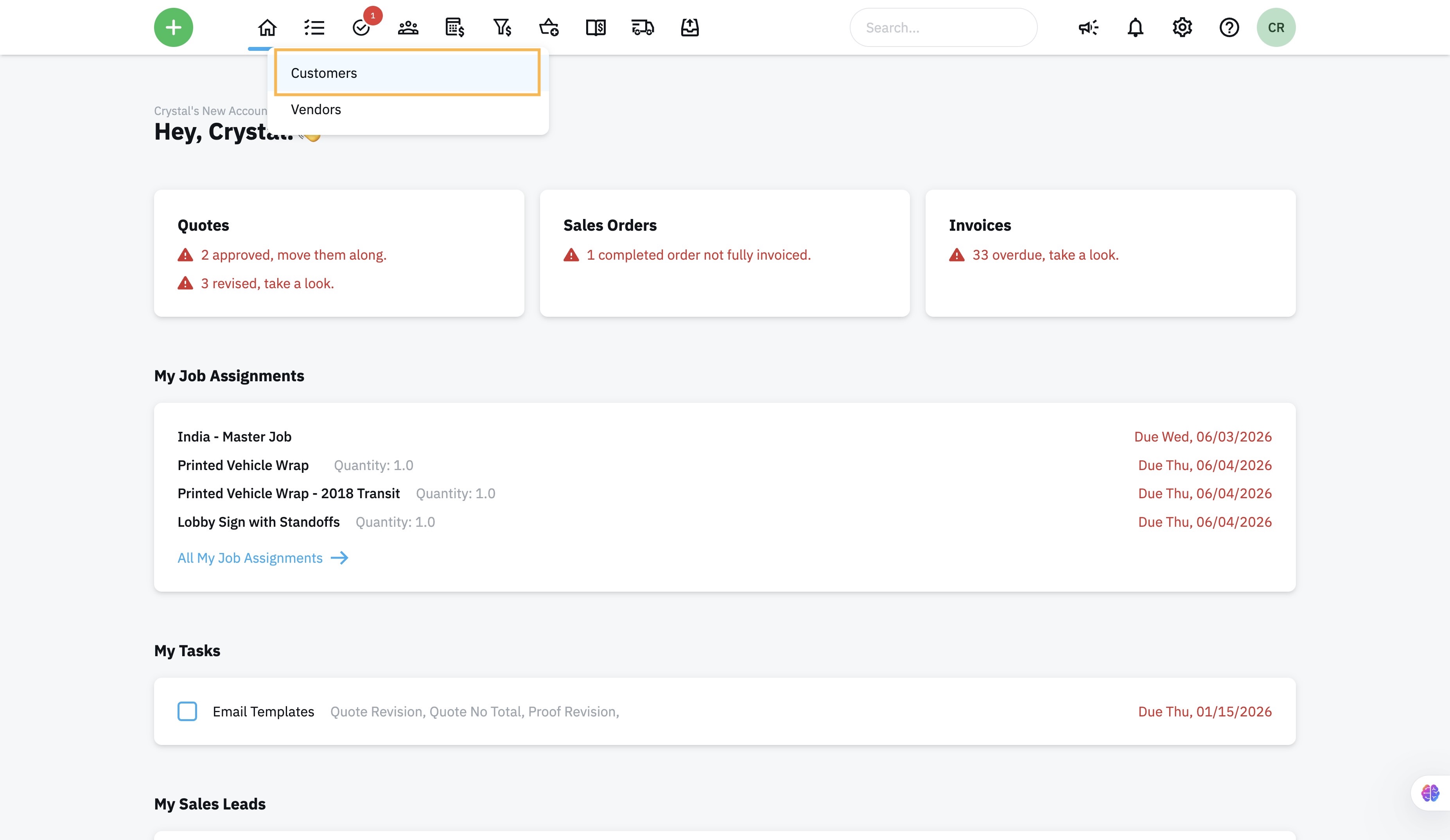
- Click "Customers"
- Click the "Find customer by Name, Tags..." field
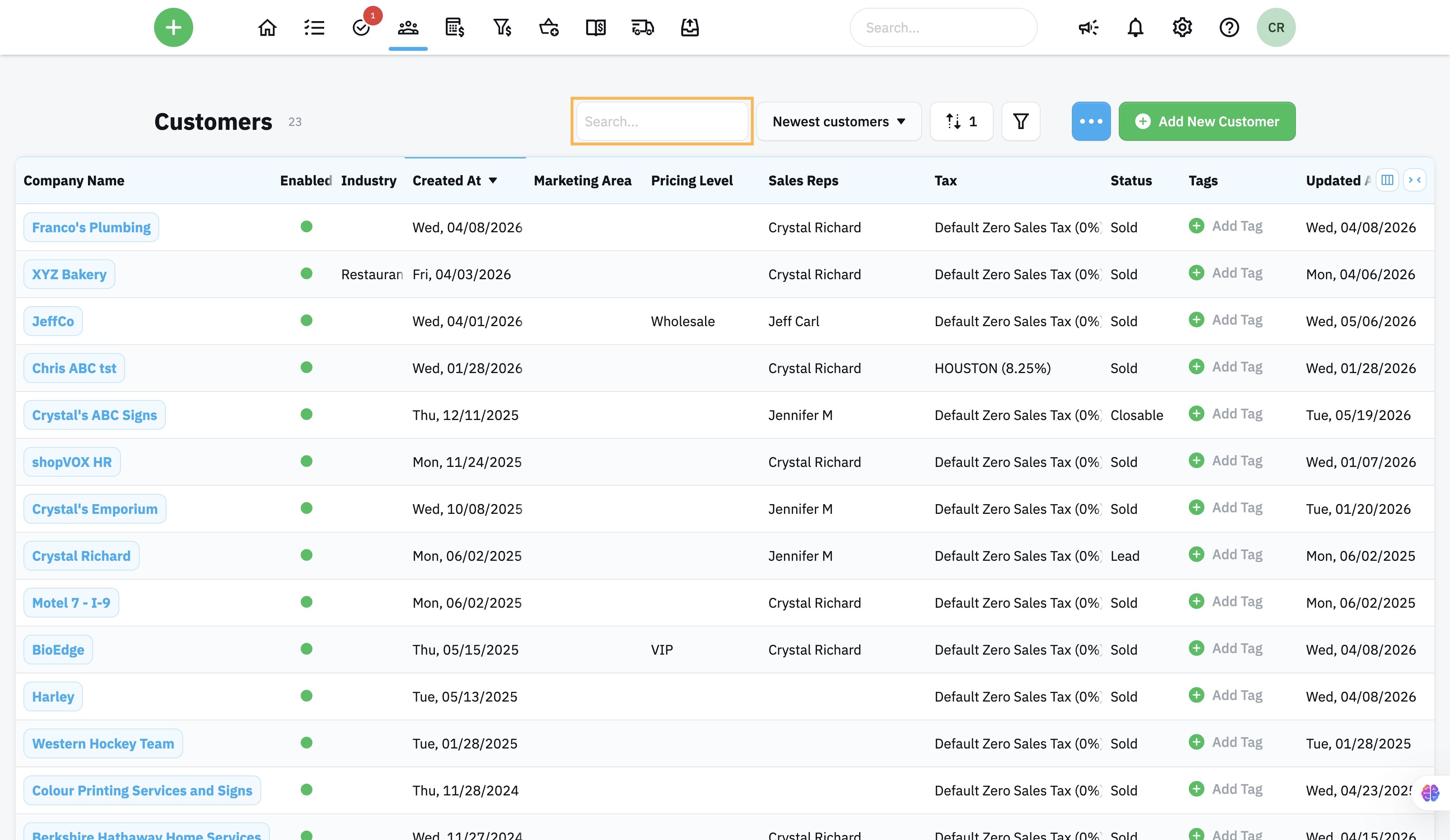
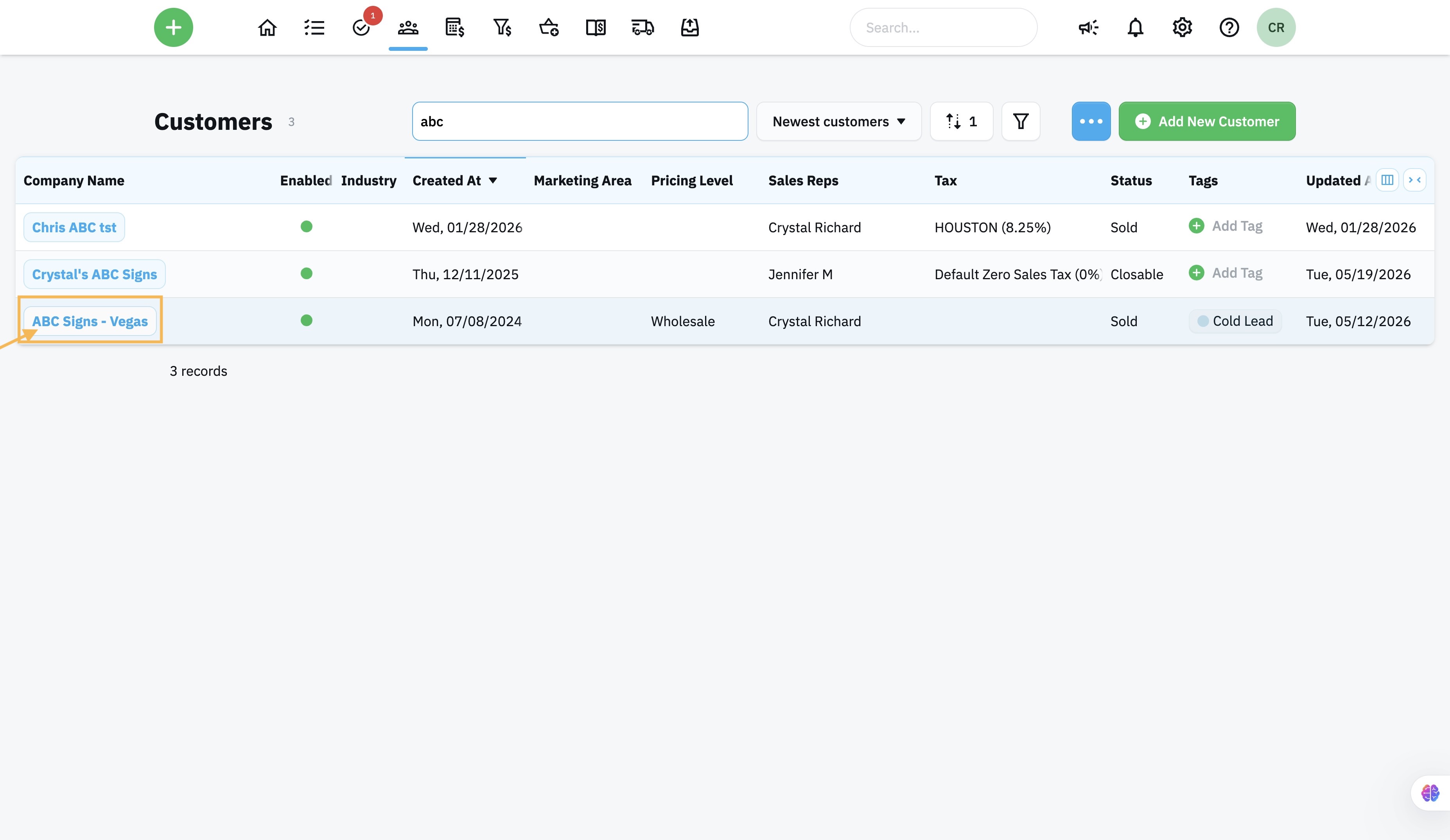
- Start typing the customer name and then click "Enter"
- Click on the customer name
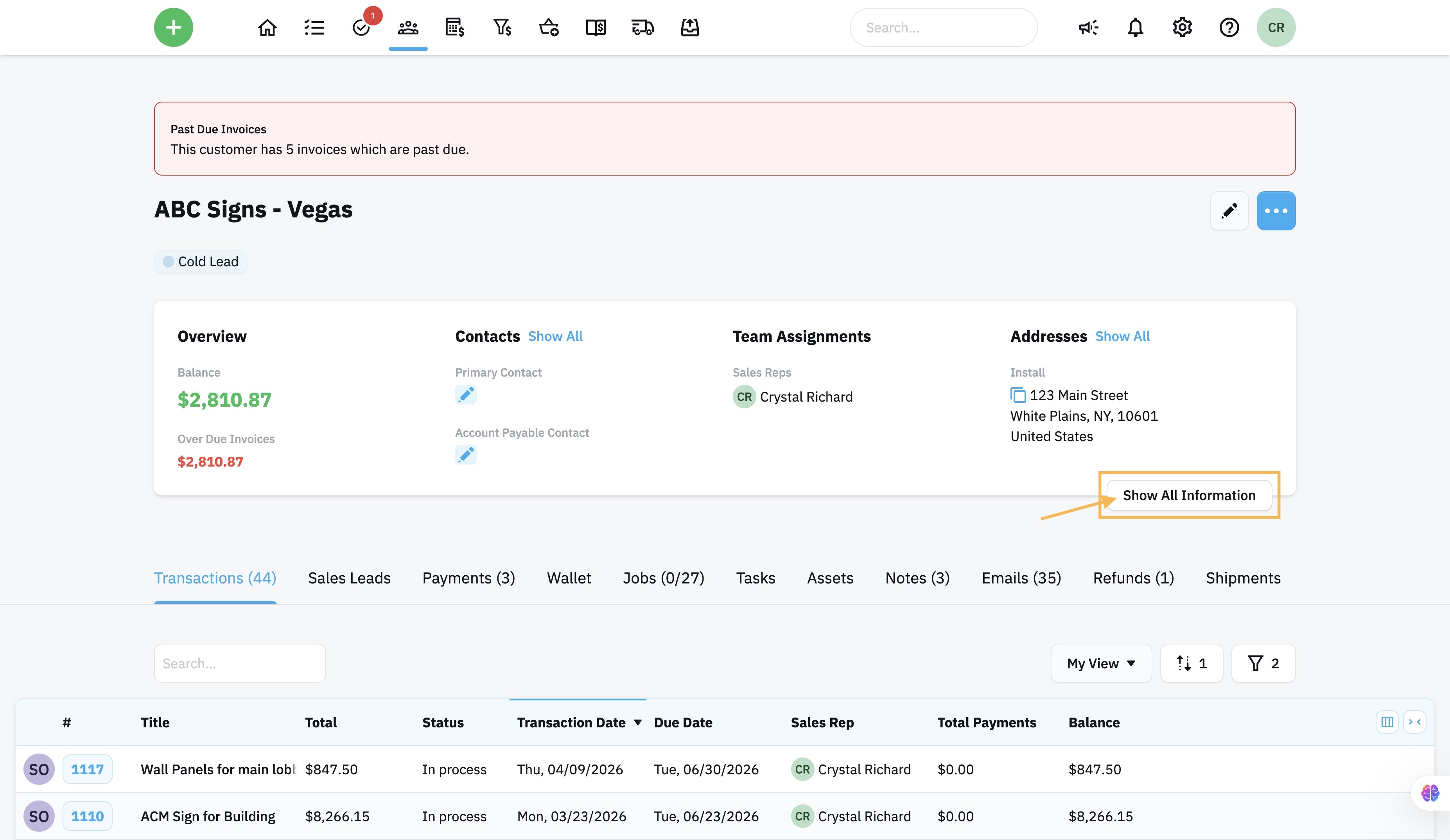
- Click "Show All Information"
- Click the edit icon to set the specific Program Fee
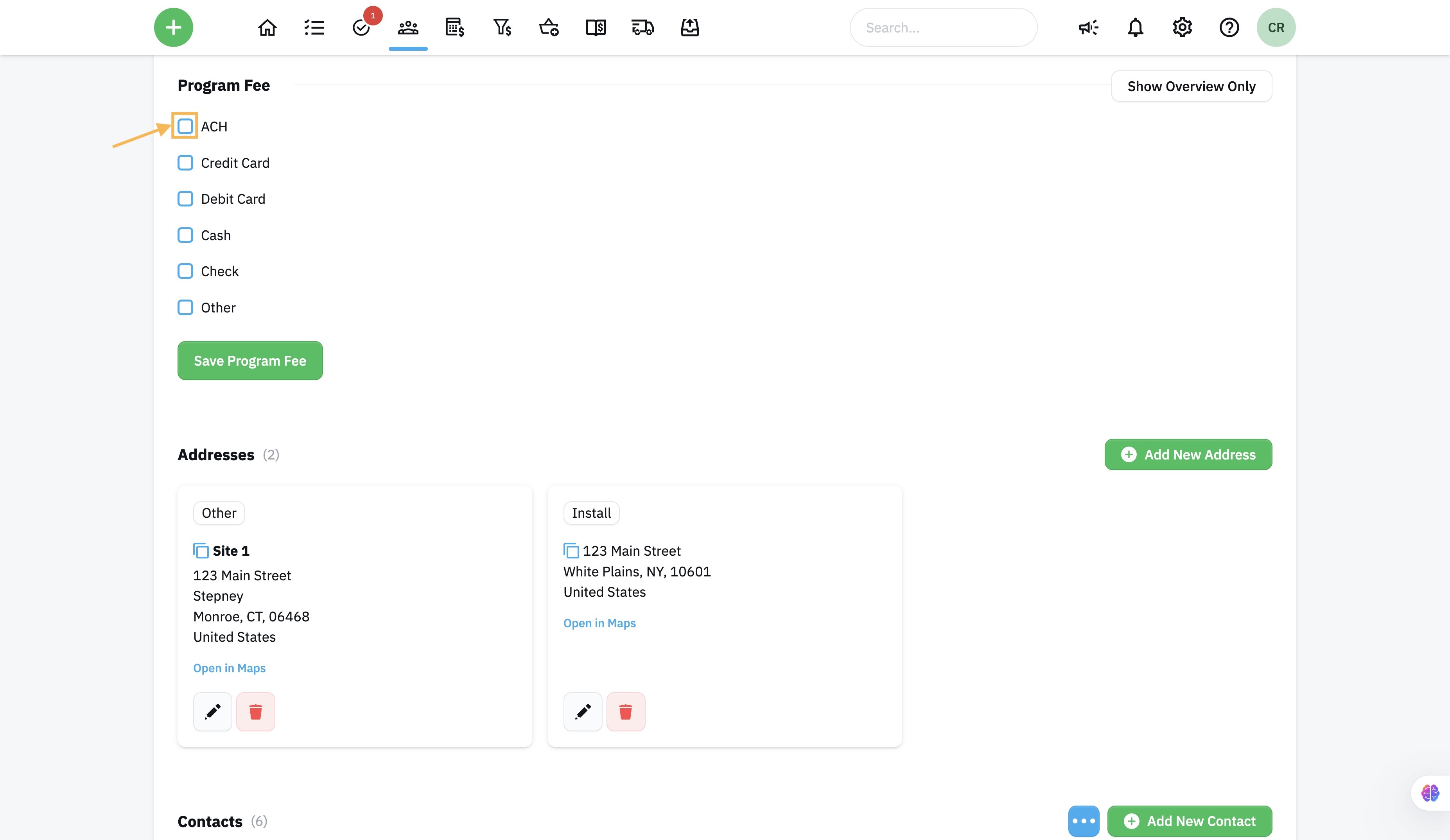
- Click "%" or "$" to set the Program Fee to percentage or a flat fee
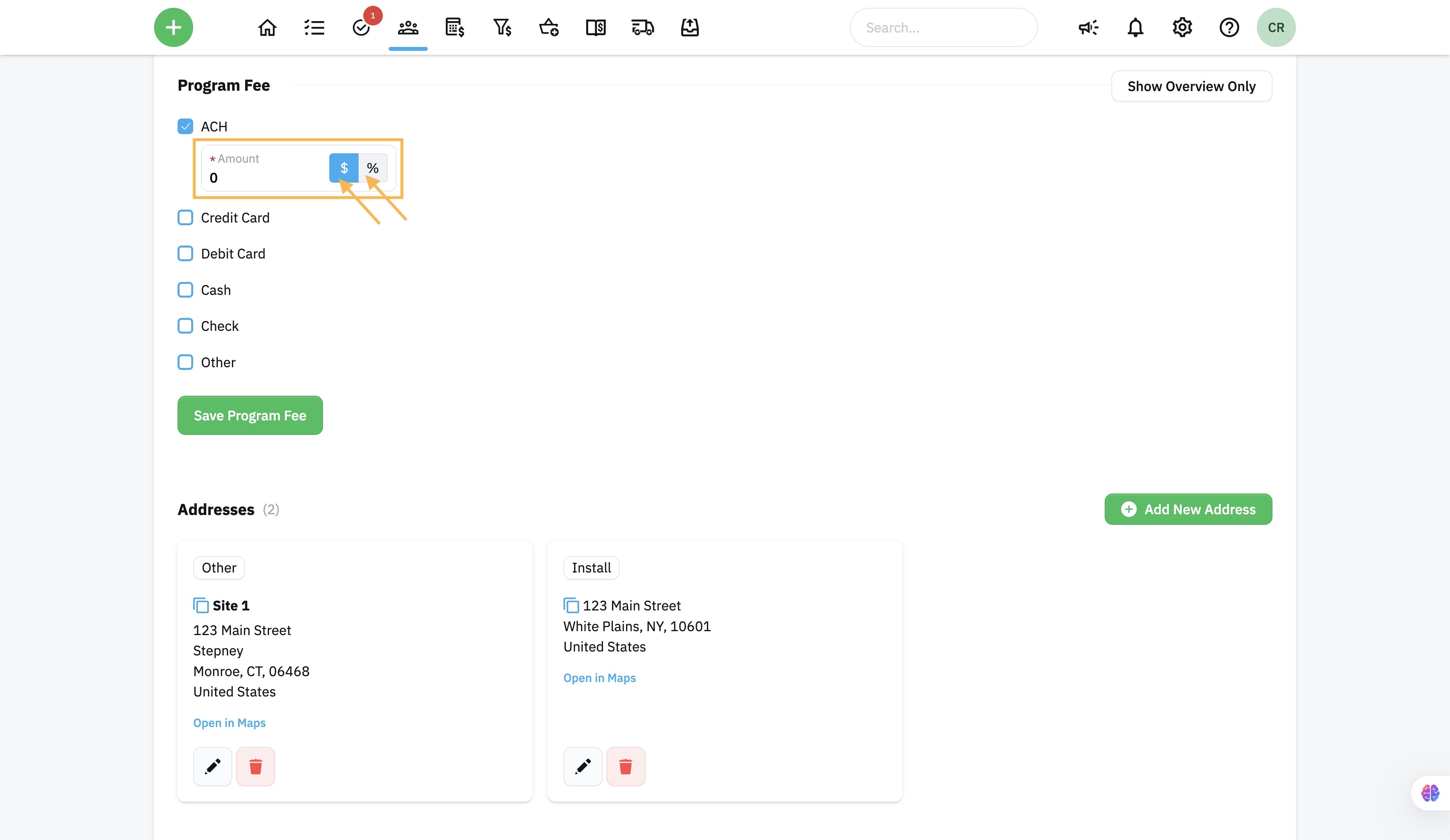
- Click the "Amount" field
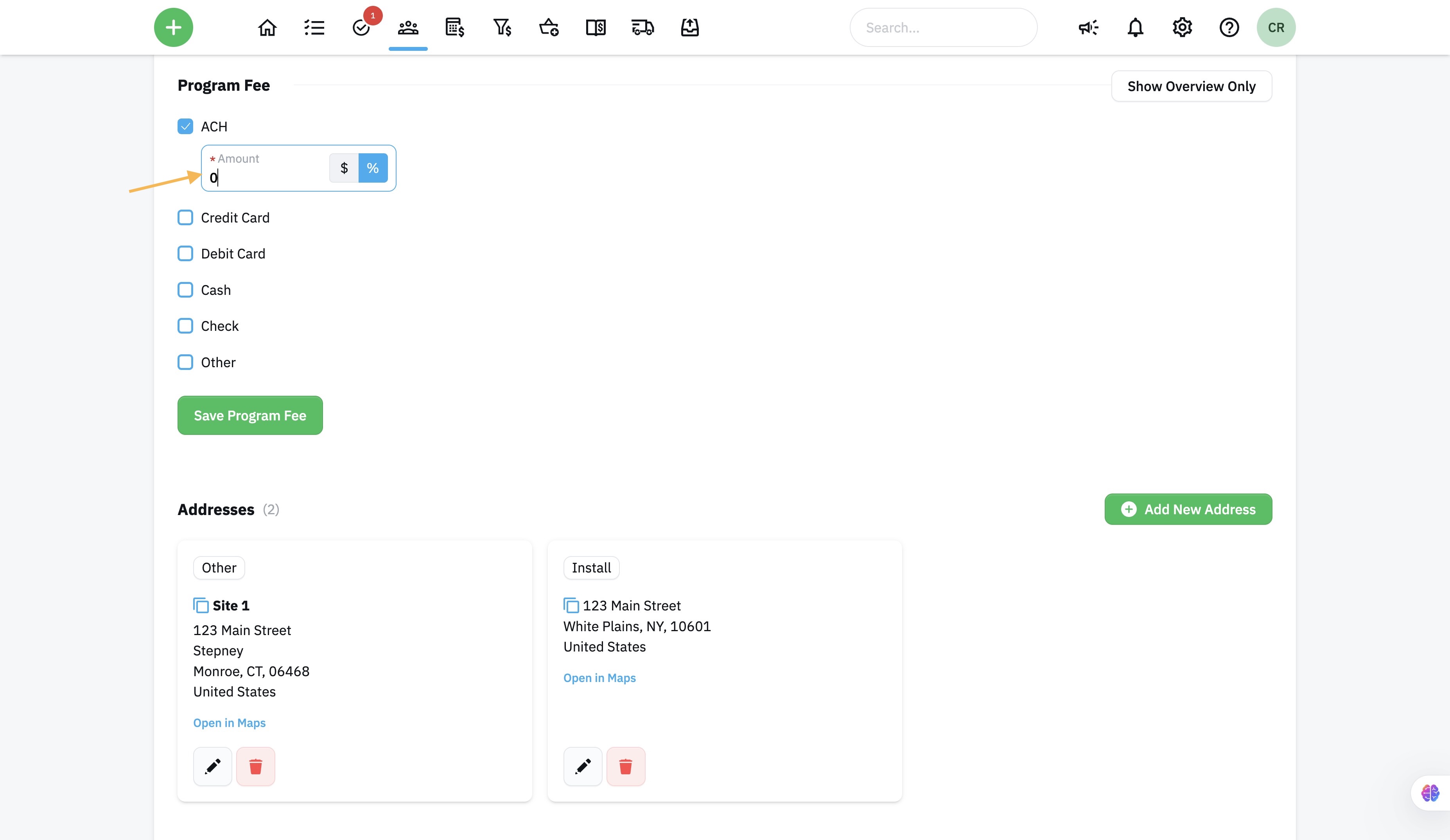
- Enter the amount or percentage for the payment type.
- Click this icon to enable the field.
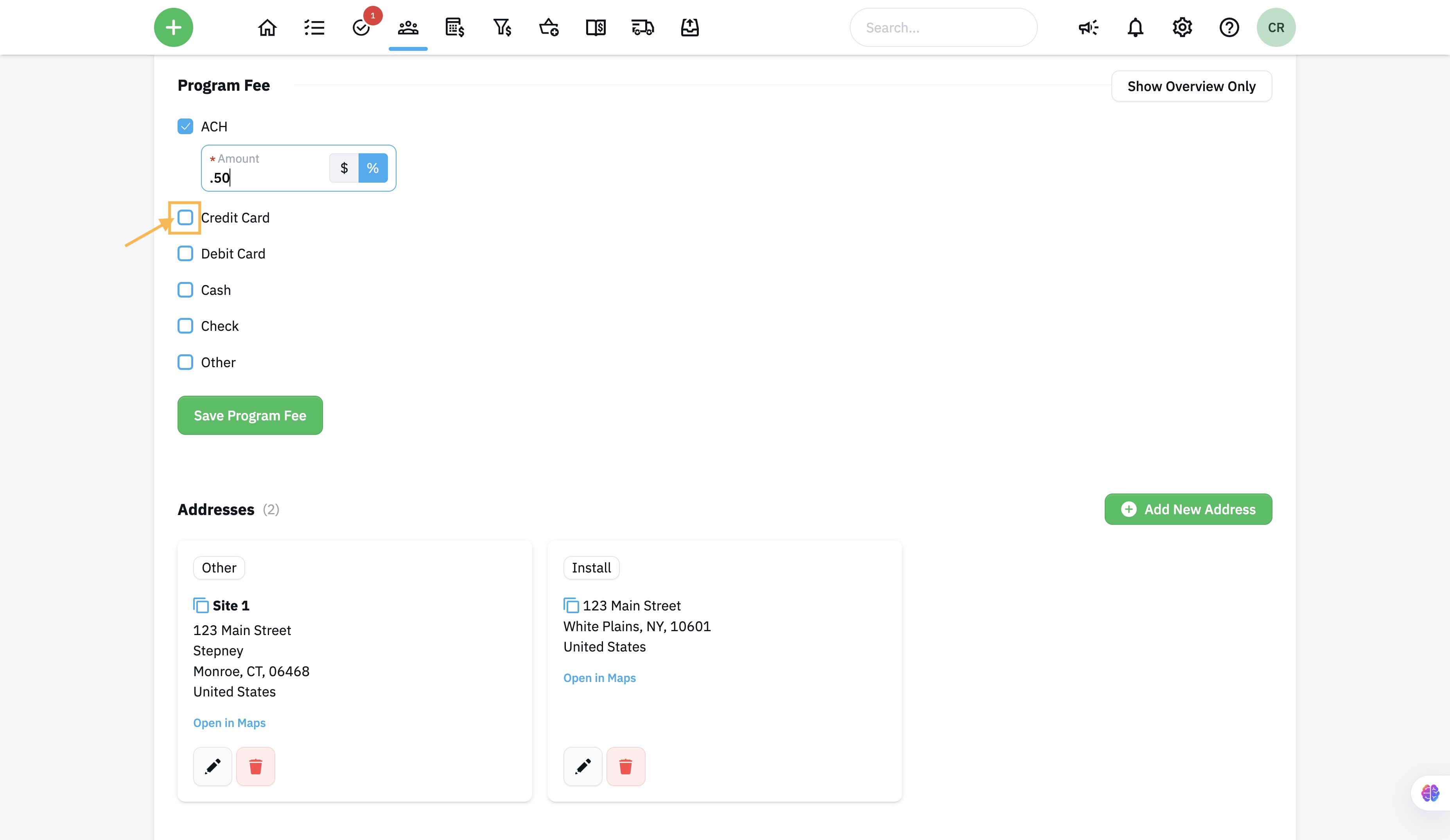
- To override the global "Credit Card" fee, set to zero for this customer.
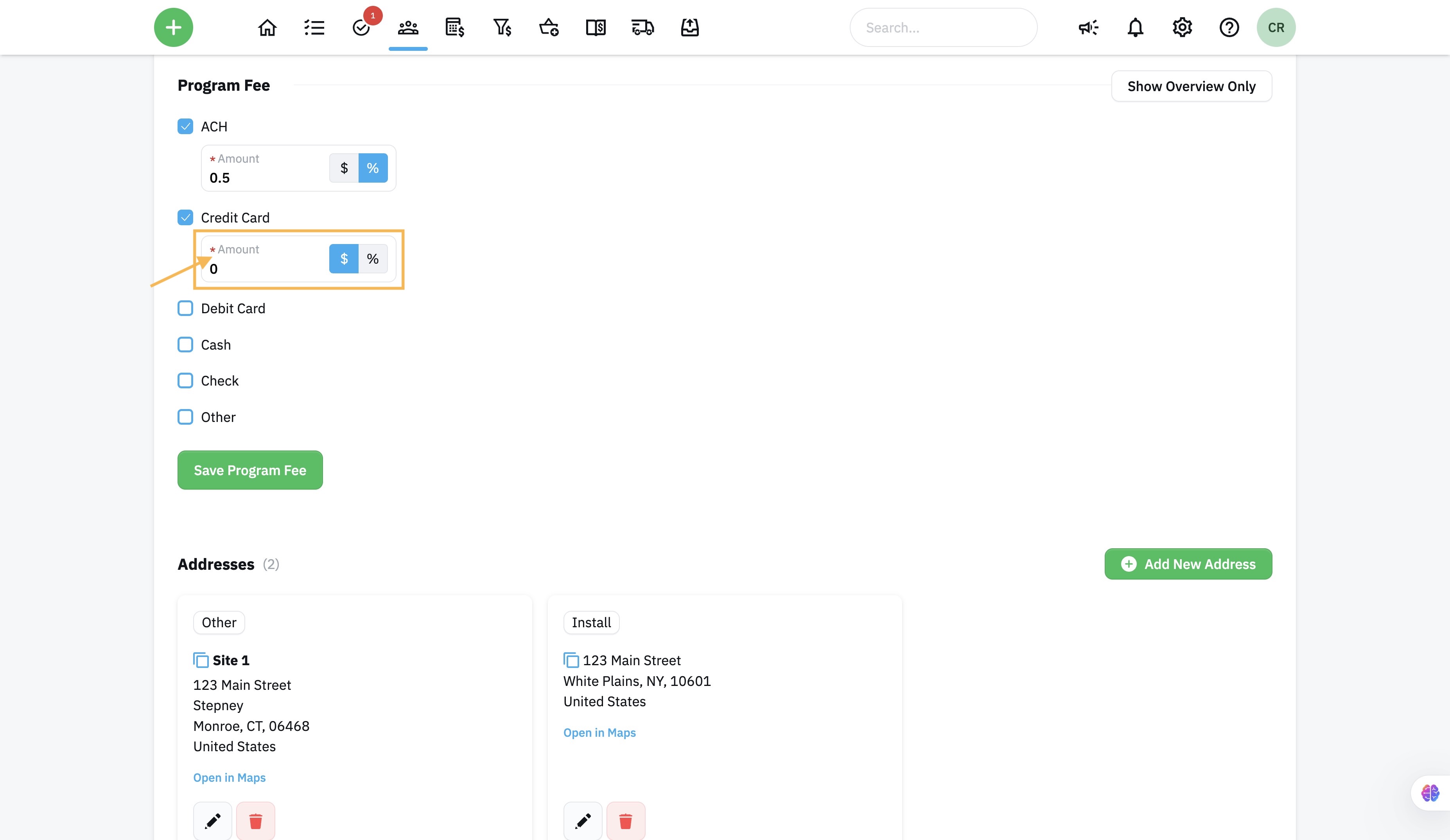
- Continue to follow these steps to set all desired Program Fees for this customer.
- Click "Save Program Fee" when complete.
Step 3: Test the Setup (Optional but Recommended)
To ensure everything is working correctly:
- Make an invoice with a line item as an example
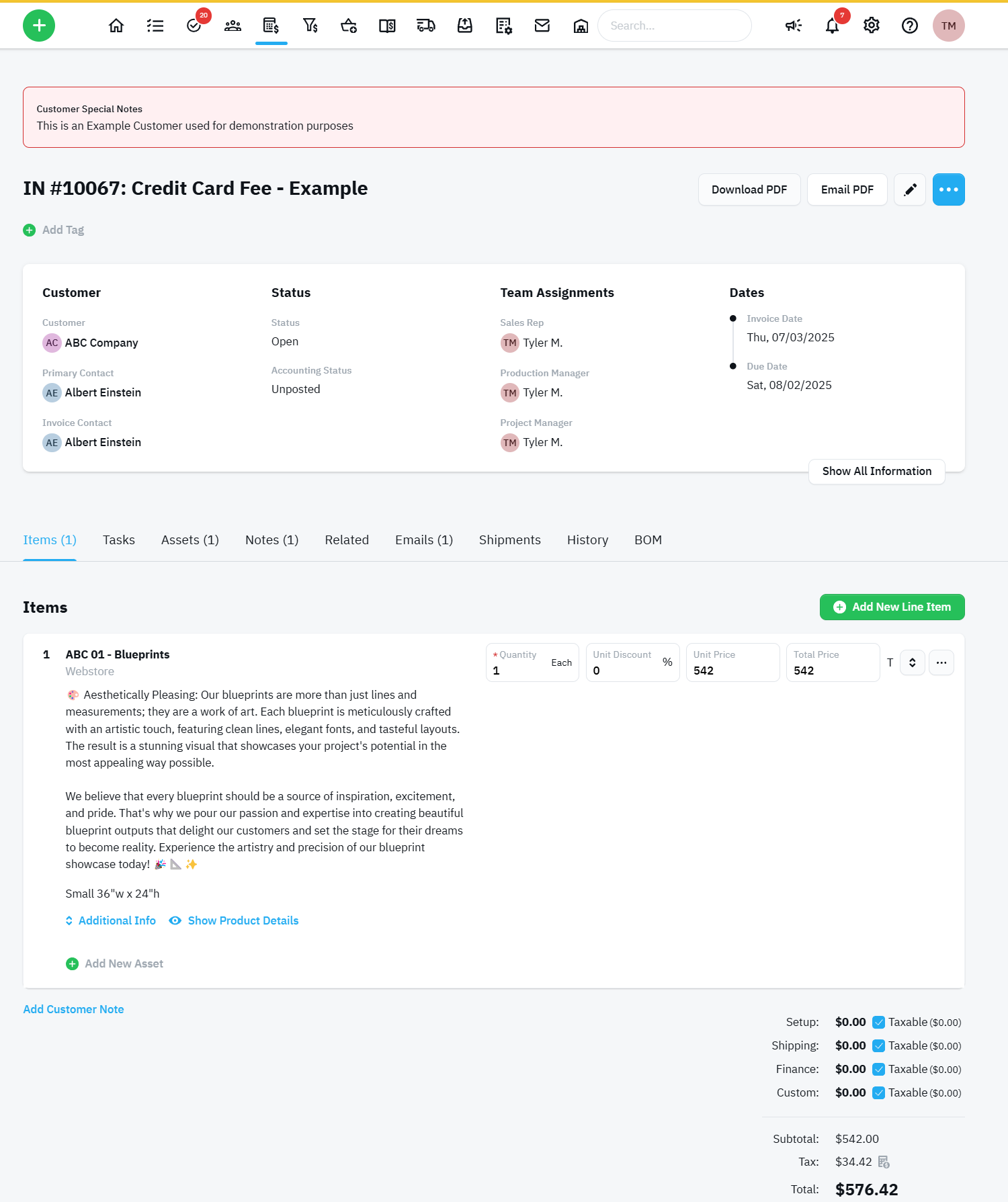
- And Email it to yourself from shopVOX
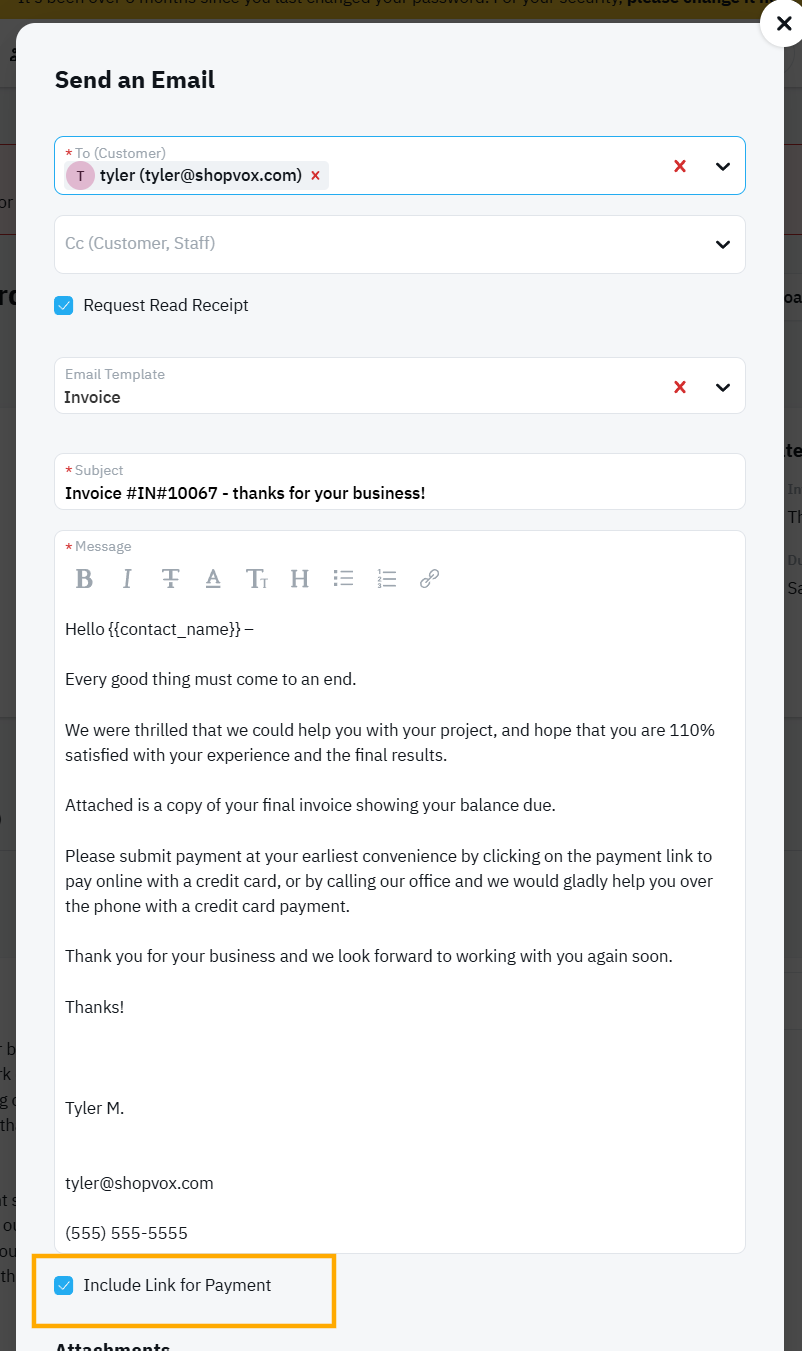
This can be set to a default under Settings -> Transactions.
- Check your Email
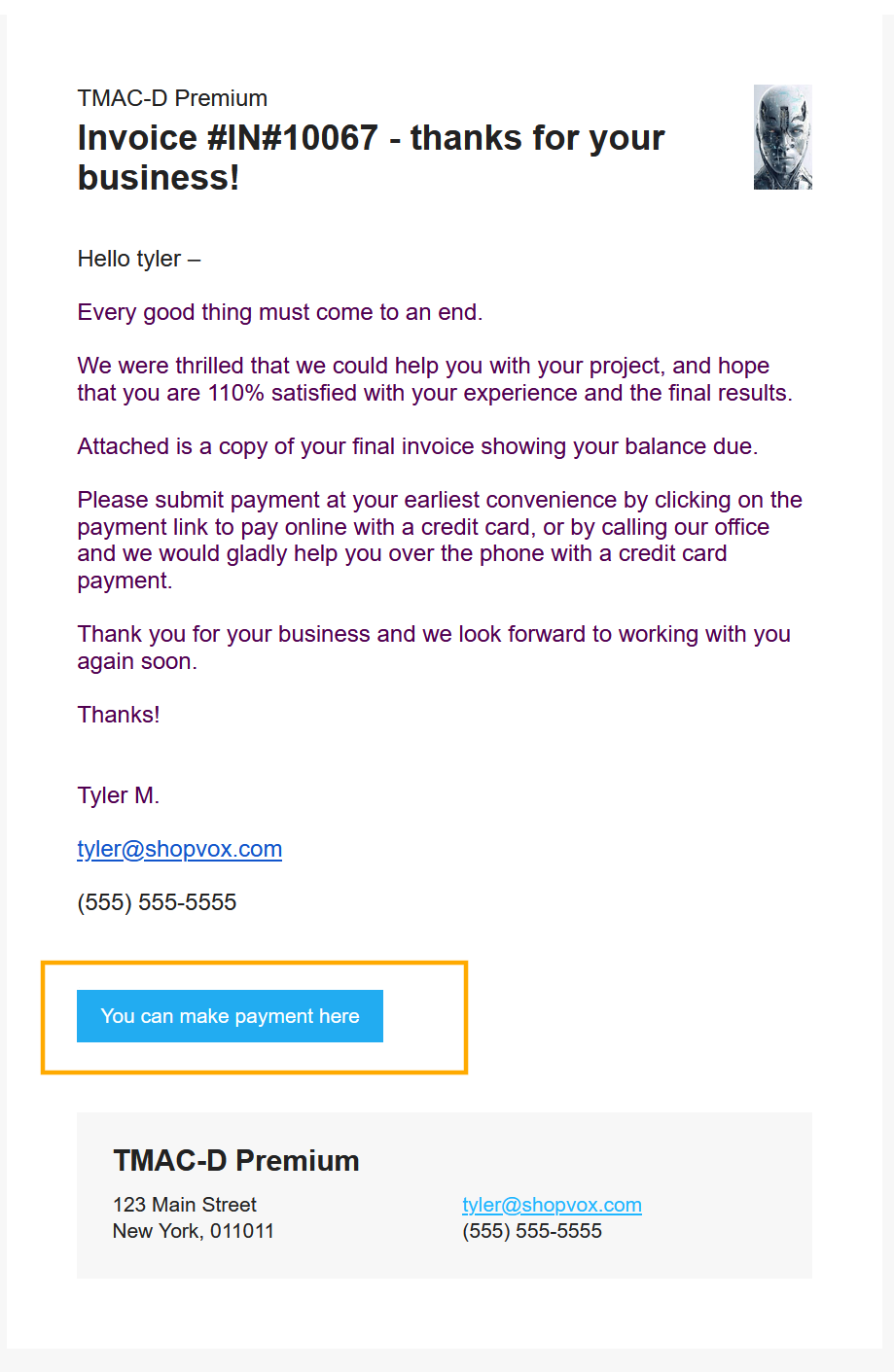
- Click on the "You can make payment here"
- You will see the New Payment screen

- Select Credit Card for the Payment Method and complete transaction.
Utilize the "Show Fee Disclosure in PDFs" option to explain or clarify Program Fees on transactions if desired.
Conclusion
If you have any questions or need help setting this up, our support team is happy to assist!

